
Why You Need to Switch to HTTPS

I know a lot of you have your own websites, so this article should be very useful for you.
Today we’re going to talk about the secure encryption protocol.

HTTPS is a secure protocol, unlike HTTP.
Google has been pushing websites toward “secure mode” for years now.
The pace of adoption over the past few years has not satisfied the company, and by the end of this week you should be prepared for all sites without HTTPS encryption to be flagged as “Not Secure” by the browser.
Benefits of migrating your site to HTTPS:
- Better standing with search engines
- The site is far safer for users — the risk of data being intercepted by a third party is extremely low
That’s exactly why Google is doing everything it can to motivate webmasters to switch their encryption protocol.
The progress of this push is clear:
- 68% of Chrome traffic on Windows and Android is now secure
- 78% of Chrome traffic on Mac and iOS is now secure
- 81 out of the top 100 sites on the web use HTTPS by default
In the new Chrome 68, the address bar will clearly display “Secure” or “Not Secure” depending on the encryption protocol — every HTTP site will be treated as insecure, not just pages with forms as is currently the case.
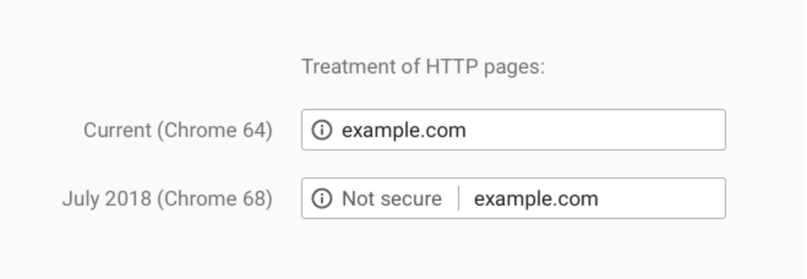
So you need to make the switch — here’s a step-by-step guide on how to do it:
- Purchase or obtain a certificate. I ordered a free Let’s Encrypt certificate through my hosting admin panel. It works in 99% of cases. The whole process was easy and fast. I clicked “Order” and within 5 minutes received an email confirming the certificate was installed. The site immediately became accessible via HTTPS. One thing to note: this certificate type needs to be renewed every 3 months. Many hosting providers do this automatically.
- Make all external and internal URLs relative.
- All internal links on the site should either be relative or use the HTTPS protocol (the latter is preferred).
Example: http://site.ru/url-part1/url-part2/ > /url-part1/url-part2/
- All external links should either use HTTPS or be protocol-relative (if the external site doesn’t have HTTPS, only the second option is available).
Example: http://site.ru/url-part1/url-part2/ > //site.ru/url-part1/url-part2/
- All internal links on the site should either be relative or use the HTTPS protocol (the latter is preferred).
- Test how the site works in various browsers over HTTPS: browse around your site in different browsers, check that it loads correctly and that the secure padlock appears, and make sure to test different page types — including on mobile browsers. After setup, confirm that images are accessible over HTTPS and check all page types.
- Test the HTTPS version of your site using the various tools and services linked in the next section below. If any errors appear, fix them. You may discover that some code on your site still references the unsecured protocol.
- Crawl the HTTPS version of your site with Xenu and Screaming Frog SEO Spider. Make sure there are no links pointing to the unencrypted protocol. Then check server response codes — existing pages should return 200, non-existent pages should return 404.
- Regenerate your sitemap.xml so it only includes links to HTTPS versions of your pages.
- Update your robots.txt file:
- In robots.txt, update the Host directive to include HTTPS in the domain name:
Host: https://site.com
- The sitemap line in robots.txt also needs to be updated.
- In robots.txt, update the Host directive to include HTTPS in the domain name:
- Set up the canonical tag to point to HTTPS.
<link rel="canonical" href="https://site.ru/" />
- Add the HTTPS version of your site to Google Search Console as a new property. You’ll need to verify ownership. Also set the correct target region for the HTTPS site.
- Use the Change of Address tool in Google Search Console to indicate that the site now runs on HTTPS.
- Add your site on HTTPS to Google Search Console as a new property. Verify ownership. Then submit your XML sitemap (using the HTTPS link) and if needed — set the target region. If you have disavowed links in the Disavow Tool, don’t forget to re-upload that file.
- Add a referrer meta tag to all pages:
Add the following to all pages of your site (before the closing </head> tag):<meta name="referrer" content="origin"/>
(There are other ways to configure this tag — see additional reading below — but this is the primary option and works for most cases.)
- Wait for search engines to recognize the new primary mirror. Now all that’s left is to wait. The time varies depending on site size, how often index updates run, and other factors. Expected wait time is 2–4 weeks. Your site’s authority metrics may temporarily drop during the transition, but don’t worry — this always happens during a move and will recover within a couple of update cycles.
Important: It is better not to set up the 301 redirect to the HTTPS version until search engines have recognized the new primary mirror. Otherwise you may see a significant traffic drop lasting several weeks. - Set up 301 redirects page by page. This should only be done after search engines have recognized the new primary mirror. Note that Google recommends setting up the 301 redirect immediately, but for a smoother transition it is safer to wait.
Important: Configure the 301 redirect so that robots.txt and the XML sitemap remain accessible over both HTTP and HTTPS without being redirected. In .htaccess you can add an exception for robots.txt with the following line:RewriteCond %{REQUEST_FILENAME} robots.txt$ [NC] - After setting up the redirects, crawl your site again with Xenu and Screaming Frog SEO Spider.
- Update all available external links pointing to your site so they use the HTTPS URL.
- Update your site URL on social media profiles.
- In traffic tracking systems such as Google Analytics and any other analytics platforms you use.
- Do the same in your paid advertising campaigns.
Good luck to everyone! 😉 Our blog madcpa.ru will also be moving to HTTPS soon — I’ll get to it when I have some free time.






Discussion
0