
How to Set Up an Ad Campaign in DatsPush: A Step-by-Step Guide

Today we’ve put together a detailed step-by-step guide to setting up an ad campaign in DatsPush. With this guide, launching a campaign in DatsPush will be a lot simpler.
Registration:
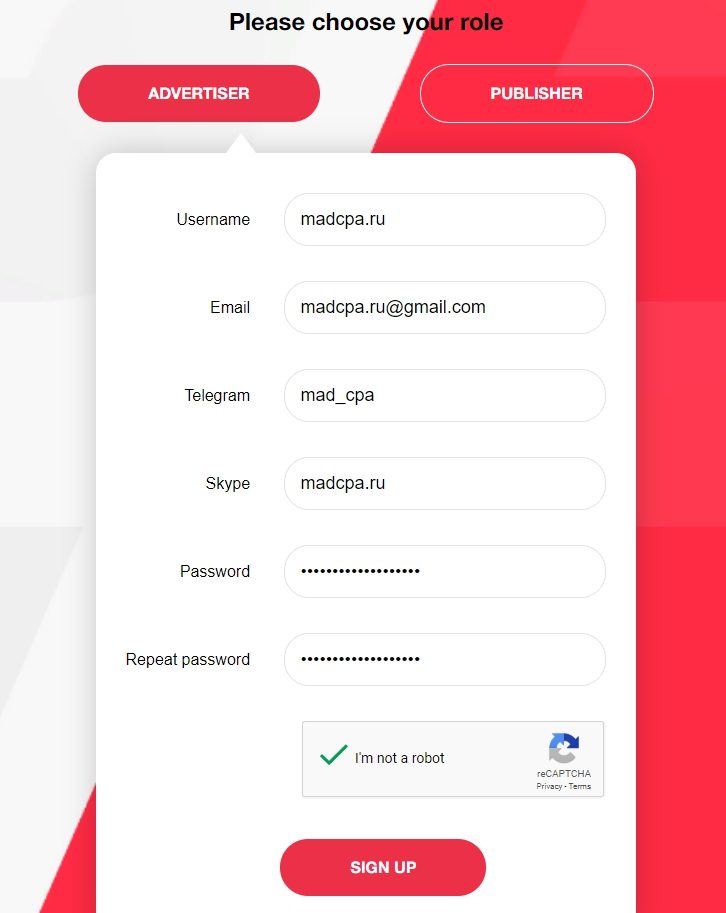
Before you create a campaign, you’ll obviously need to register as an advertiser. Head to datspush.com/advertiser/register and fill in the minimal required information. After registration you’ll log in and land straight in your dashboard — no tedious waiting for account approval or activation.
Adding Funds:
To add funds, go to the “Finance” section and click “Add Funds”. Then choose your preferred payment method — WebMoney or ePayments — enter the amount and your promo code (if you have one), click “Submit”, and complete the payment through the payment system.
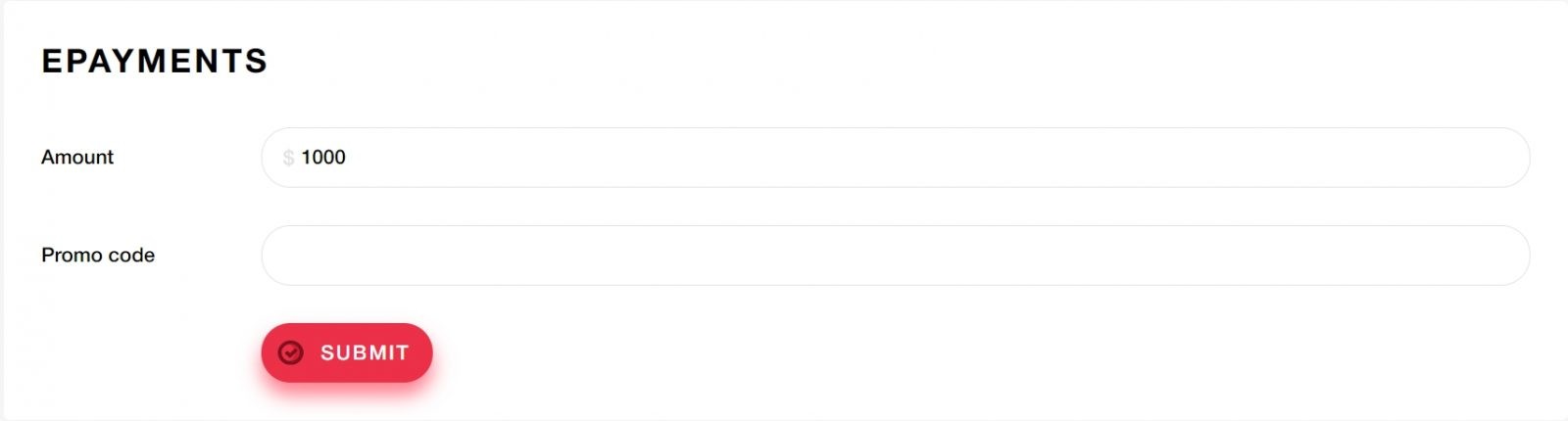
Note: the minimum deposit in DatsPush is just $50, but the network is balance-dependent, so we recommend depositing more to ensure your ads deliver quickly.
Creating a Campaign:
Go to the “Campaigns” section and click “Add Campaign”. Then fill in the general campaign settings:
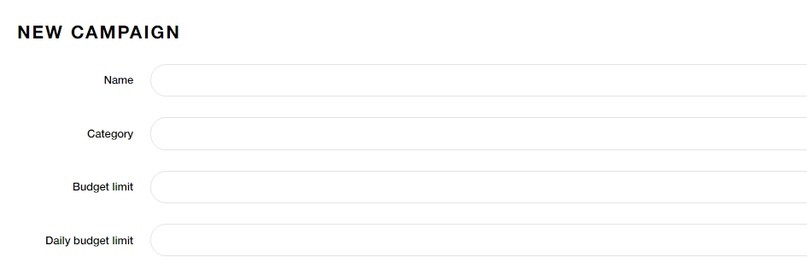
Name — your campaign name;
Category — choose one of 6 available categories;
Budget limit — total budget cap;
Daily budget limit — daily budget cap.
Next, fill in the targeting settings:
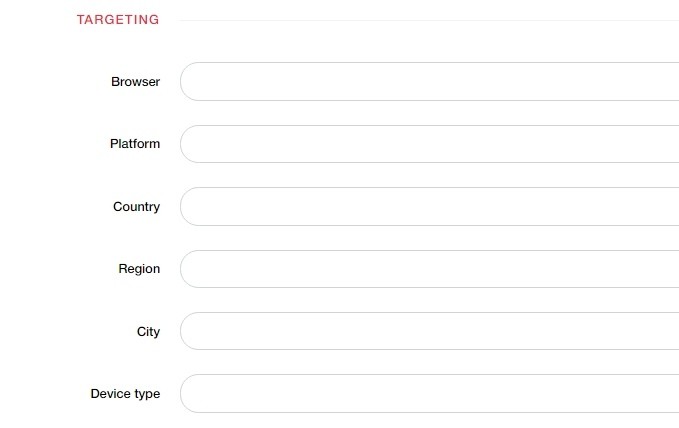
Browser — target browser;
Platform — platform/OS selection;
Country, Region, City — location targeting;
Device type — device type targeting.
Next comes the whitelist/blacklist configuration, plus campaign start date and time:
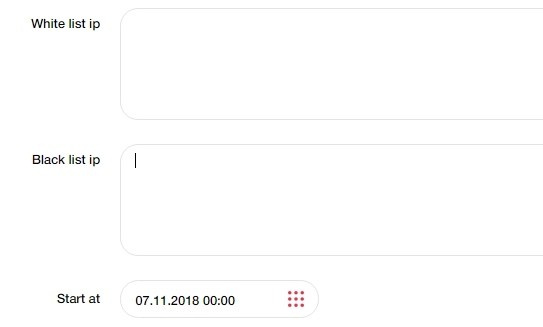
White list ip — IP whitelist;
Black list ip — IP blacklist;
Start at — campaign start date.
Click “Create” and your campaign is set up. But you’re not done yet — you still need to prepare the creatives that users will see. Click “Create Creative” in the top right corner.
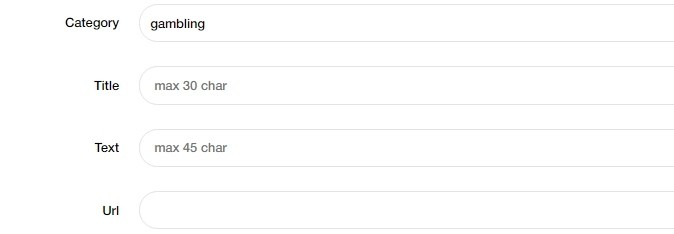
Category — select the category;
Title — write your ad headline;
Text — write your ad body text;
URL — the destination URL you’re promoting.
Then add:
Icon file — icon image (192×192 px);
Image file — main creative (491×398 px);
Bid price — set your cost per click;
Frequency — how often push notifications are sent, in seconds. Default is 7,200 seconds (2 hours);
Capping — number of times a single subscriber sees your ad, from 1 to 9.
To finish the setup, click Create and wait for moderation. After approval, your push ad will start delivering according to your configured settings.






Discussion
0