
How to Set Up Your First Snapchat Ad Campaign: A Step-by-Step Guide
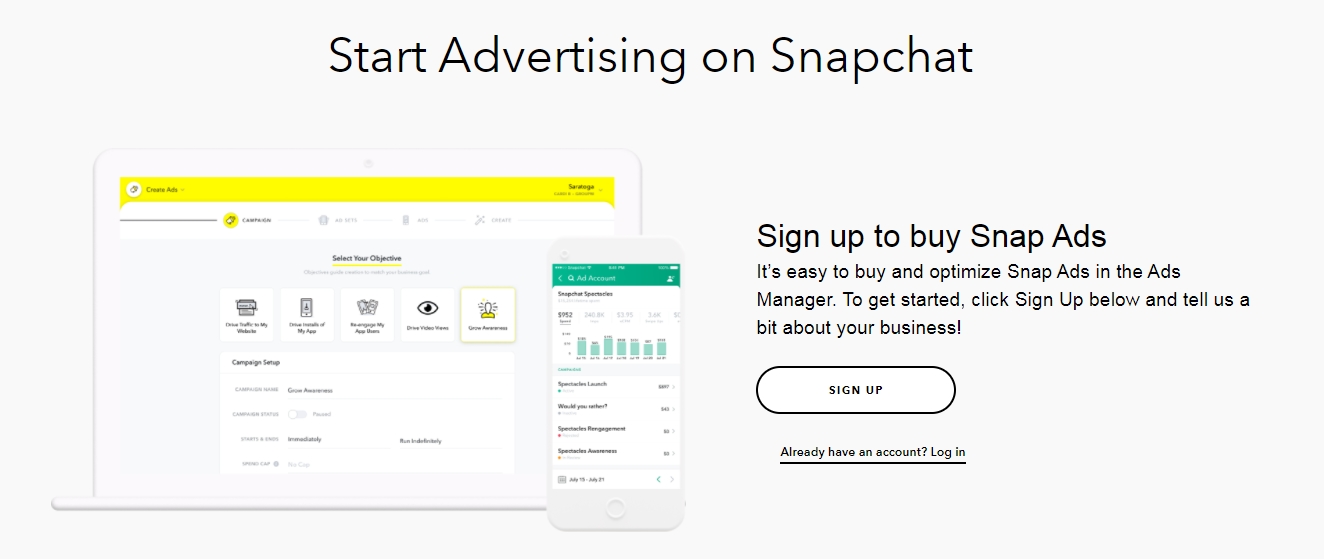
Advertising on Snapchat
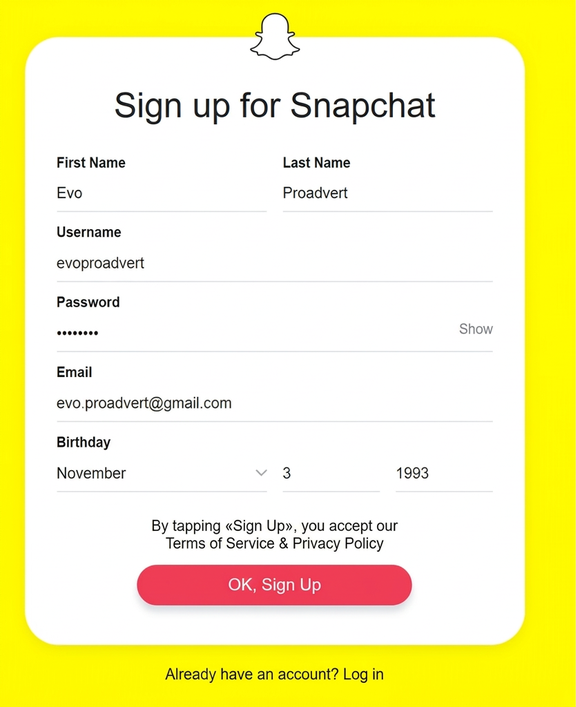
First things first — let’s get a Snapchat ad account set up. To do that, you’ll need a regular Snapchat account (from what I can tell, at least). You can register one here — https://accounts.snapchat.com/accounts/signup
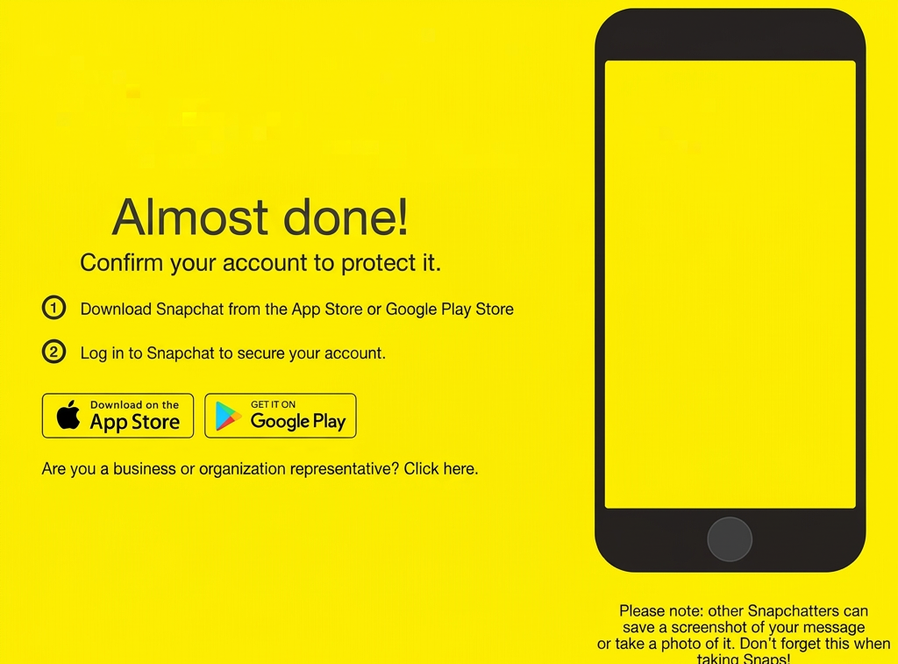
After registering your regular account, Snapchat will ask you to confirm that you’re here for business purposes. Click through as shown in the screenshot below. I could only access this step after creating a regular account first — looks like you essentially upgrade it to a business account from there.
Next, you’ll land on this screen — go ahead and click GET STARTED

One more screen — just click SIGN UP and keep moving.
Now fill in your business account details.
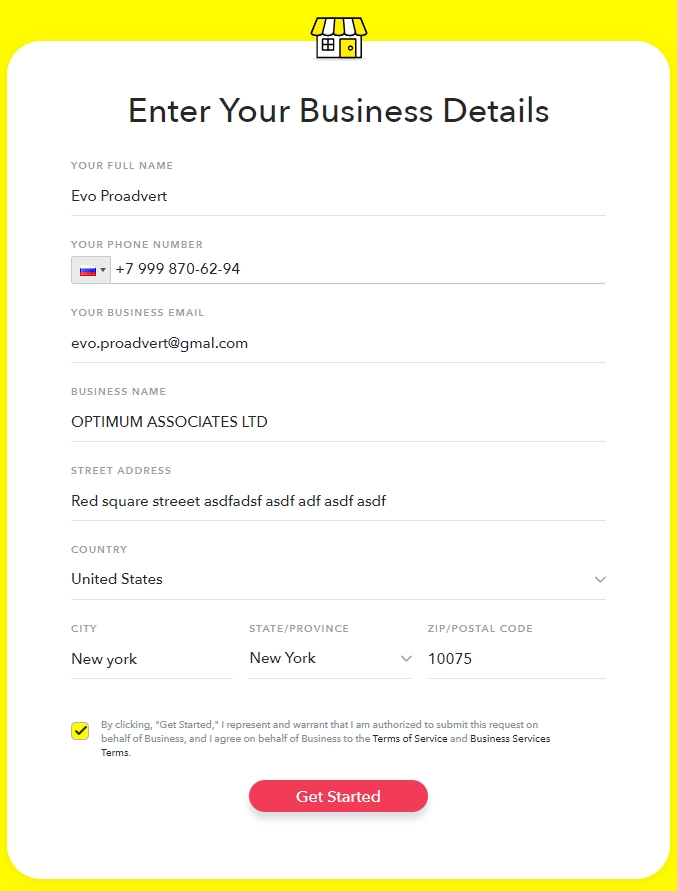
Fill everything in carefully. Once you’re done, click GET STARTED and you’ll land inside the advertiser dashboard.
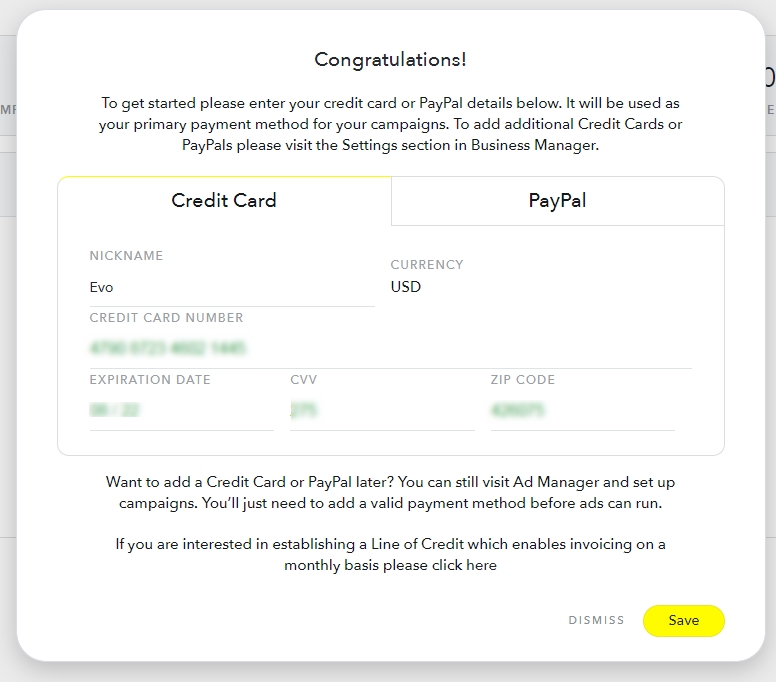
Enter your payment details and you’re ready to start building your first campaign. The whole setup, by the way, feels very familiar if you’ve ever run ads on Facebook.
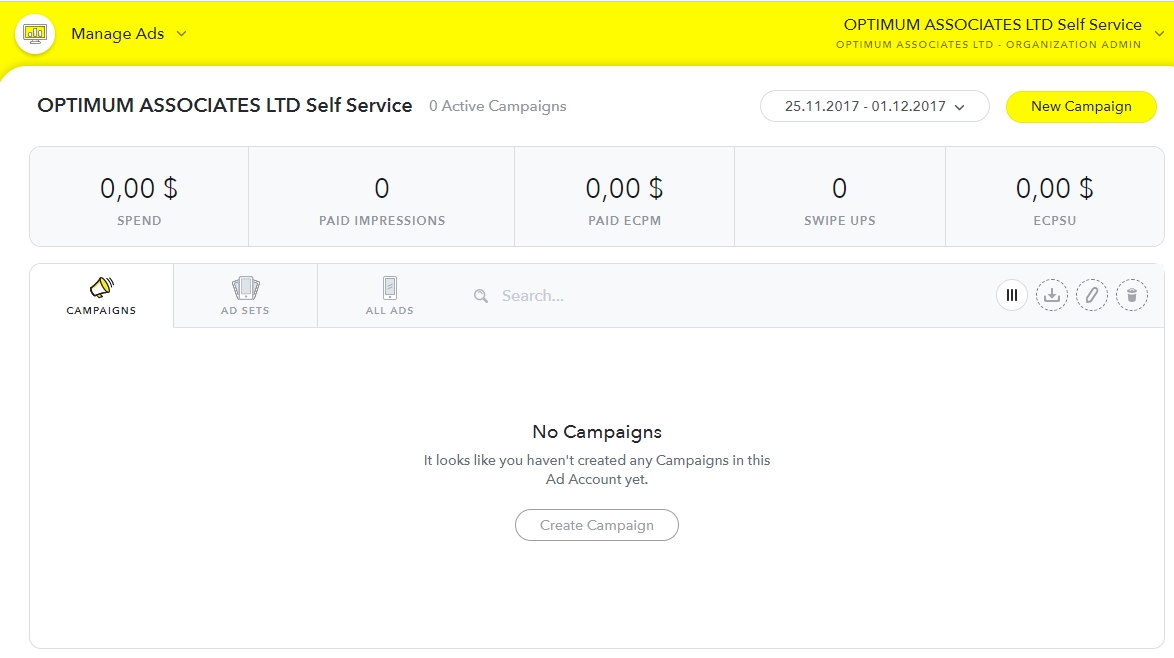
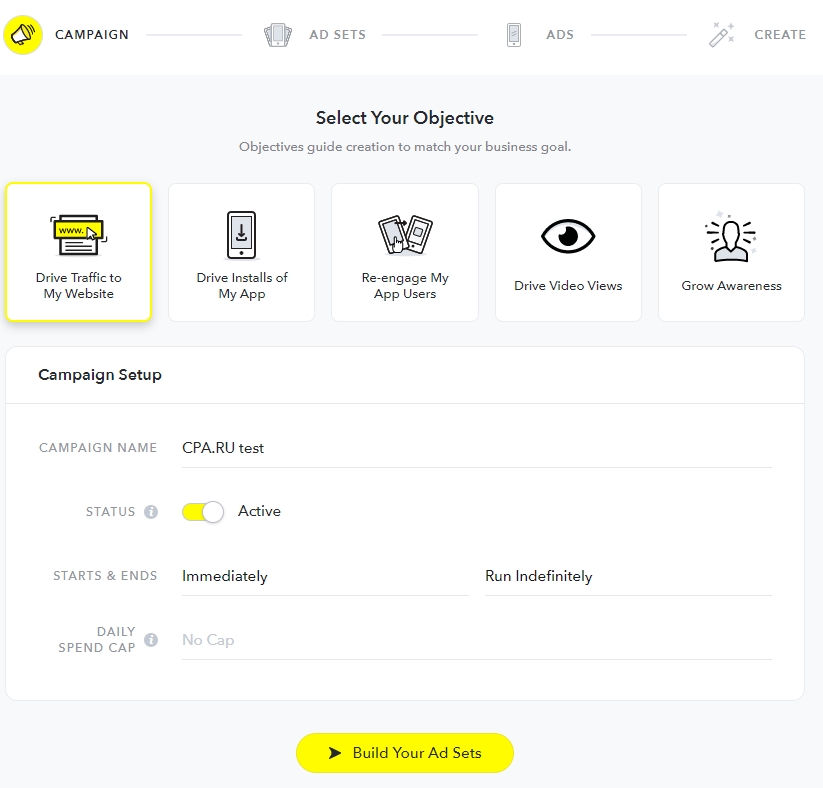
Click CREATE CAMPAIGN and you’ll see a clean set of options — campaign objectives are straightforward and self-explanatory. If you’re driving website traffic, select that objective. If you’re focused on mobile app installs, that option’s there too. Everything is clearly labeled and easy to navigate.
Next up, you’ll create your ad set — yes, very Facebook-esque. Here you’ll configure your placements, set your campaign start and end dates, and define your GEO targeting.
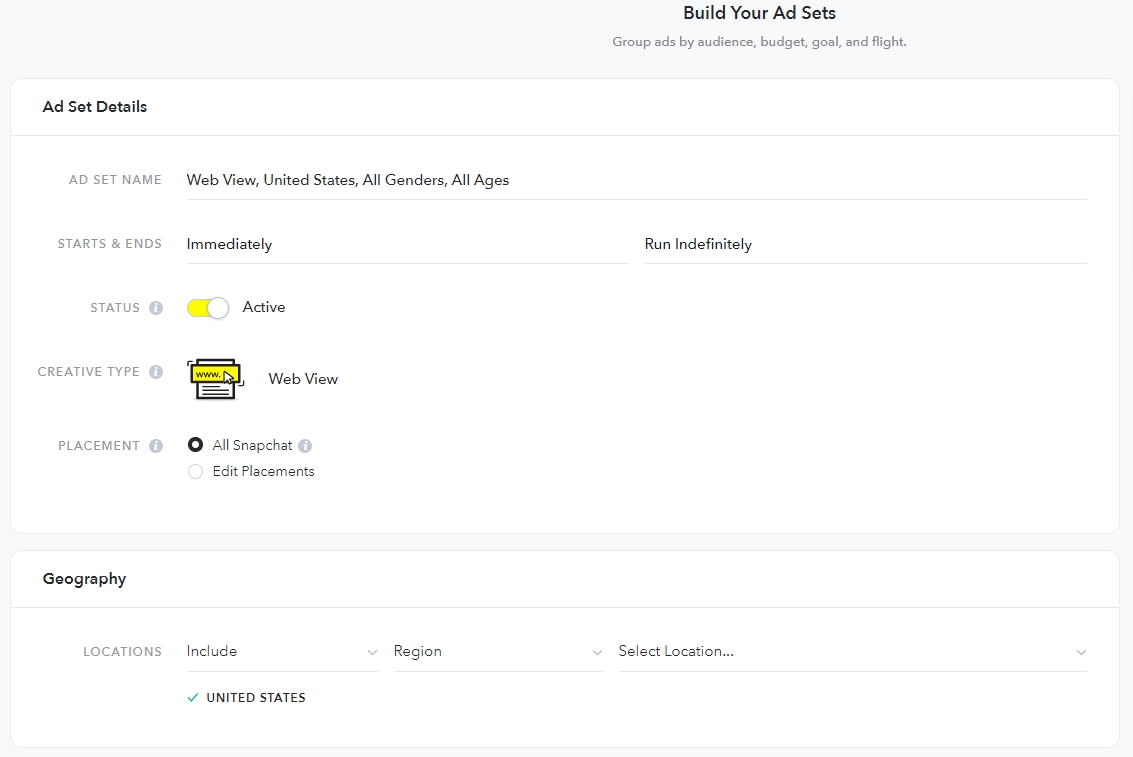
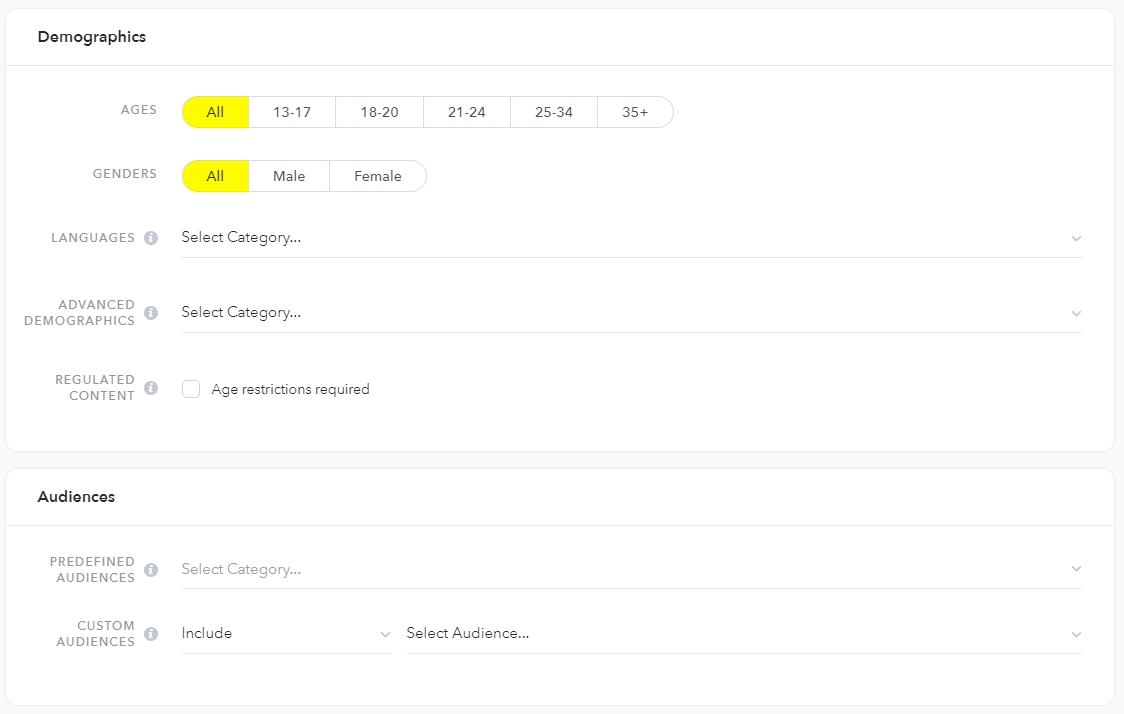
Demographics are up next — pretty self-explanatory. You’ll also find audience options here. If you’ve worked with Facebook Ads before, this will all feel familiar. If you’re newer to paid social, I’d suggest sticking to the basics for now and exploring custom audiences once you get more comfortable.
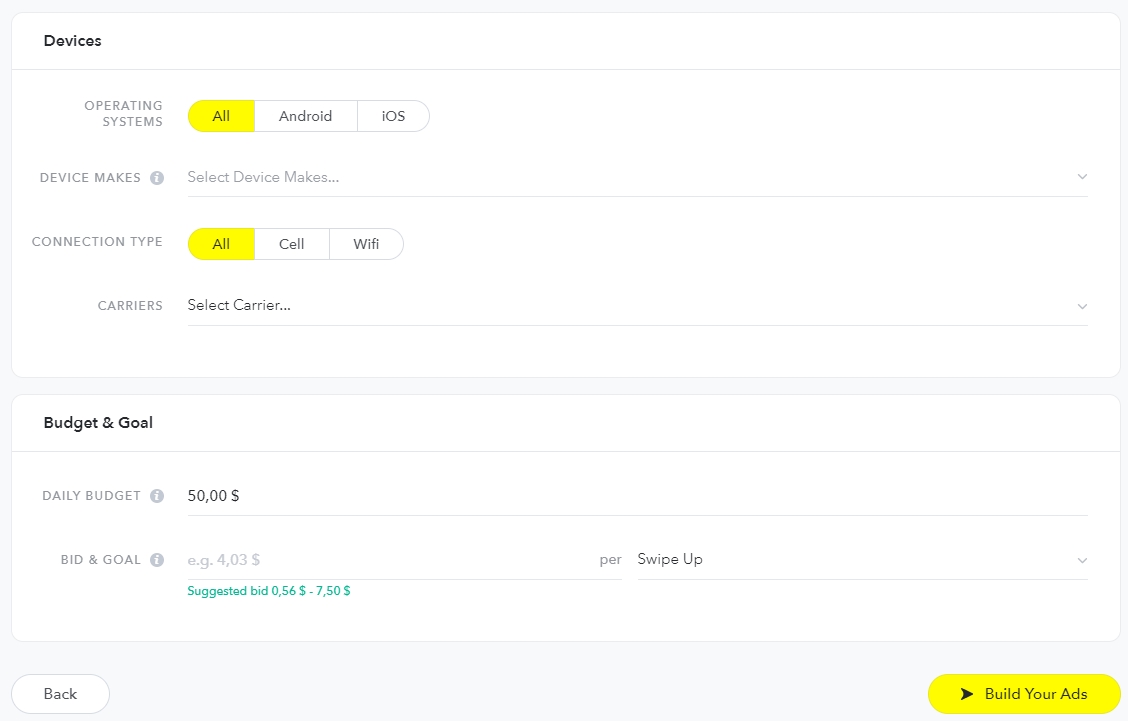
Last section in the targeting settings: device targeting and your bid — either cost-per-click or CPM.
Overall? My honest take is: don’t overthink it. Any affiliate marketer or media buyer with a bit of experience will feel right at home in this dashboard — it’s intuitive and borrows a lot from Facebook’s structure. There’s really no reason not to test this traffic source.
Now for the creative. You can either upload your own video or build one from scratch inside Snapchat’s creative tools. For original creatives, I’d recommend using Canva (they have Stories-format templates ready to go), shooting your own vertical video content, or sourcing from a stock video library. The vertical, full-screen format is key — think 9:16 aspect ratio.
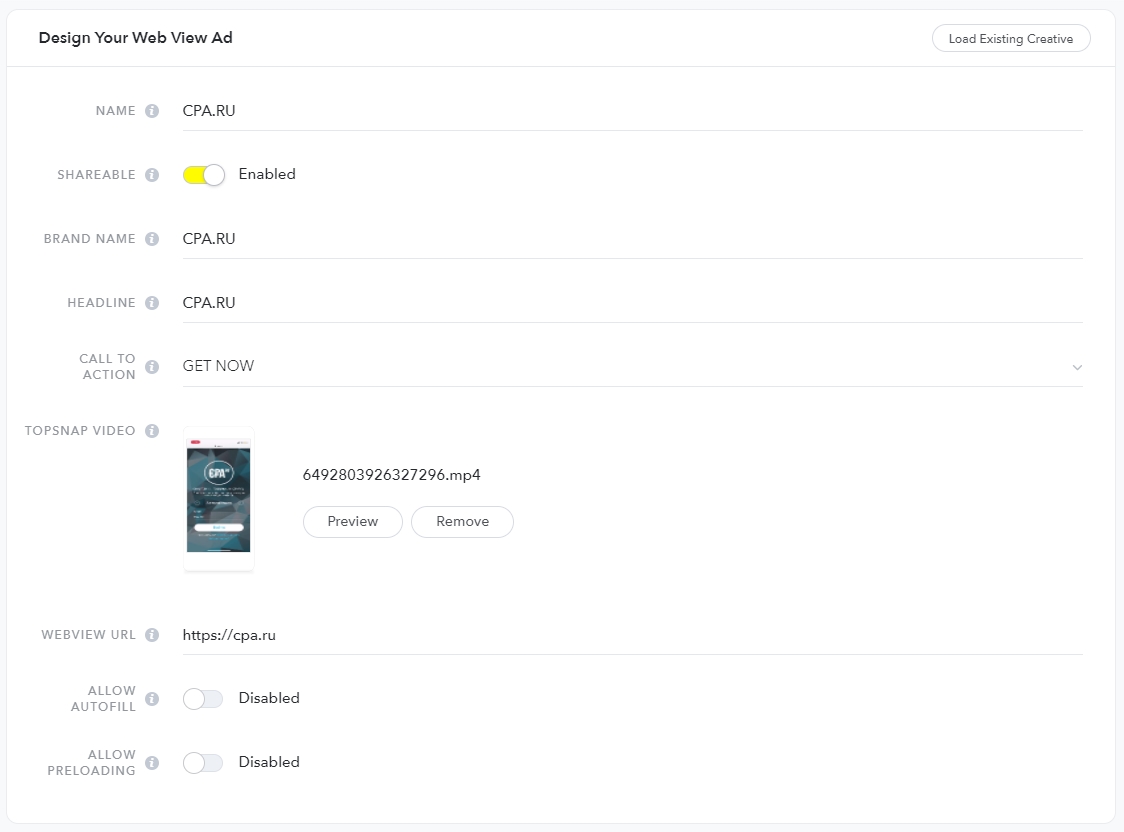
Above is an example of an uploaded video creative. But if you’d rather build something from scratch inside Snapchat’s own creative interface, here’s what that looks like — again, very intuitive.
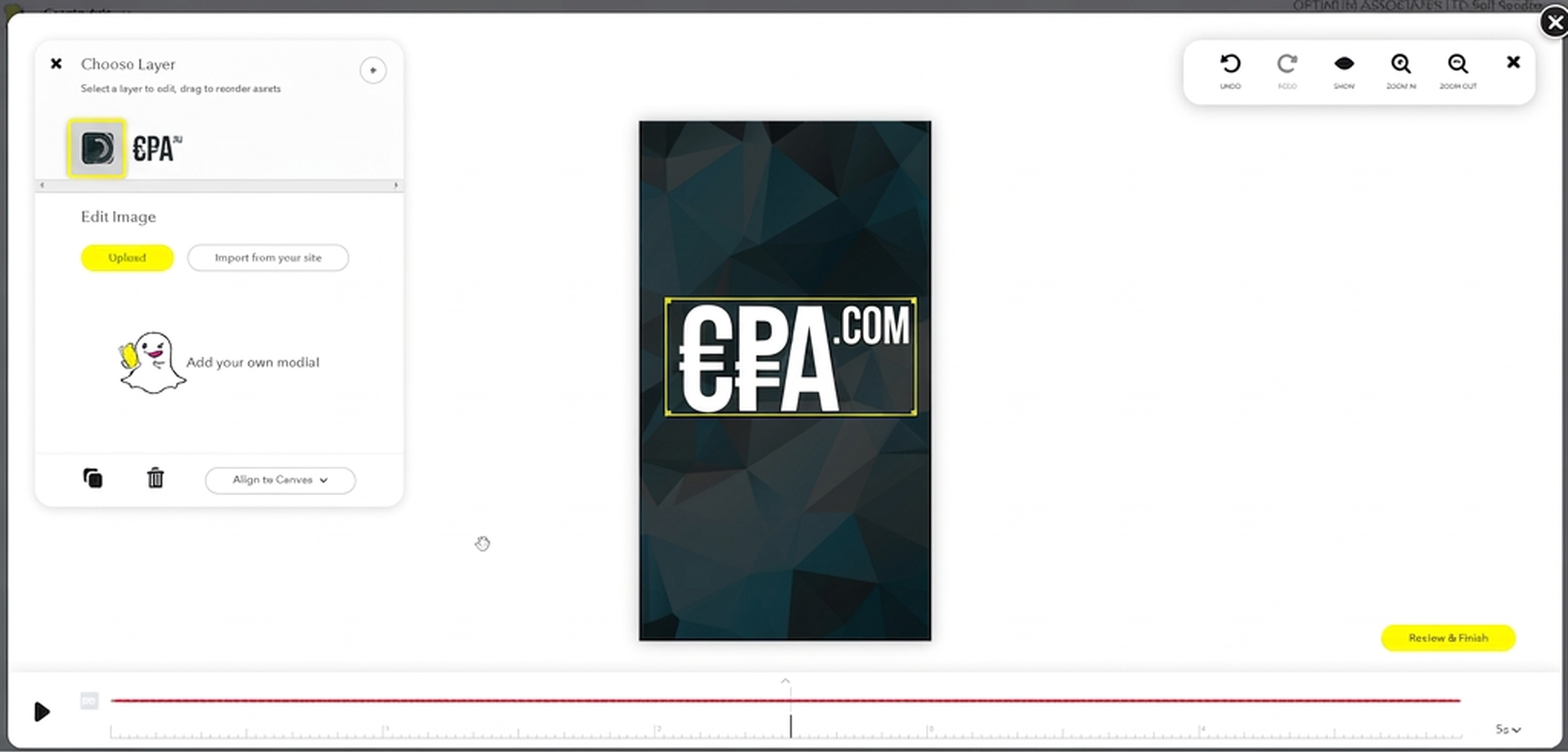
Here’s the Snapchat creative builder — honestly pretty solid. Clean interface, easy to work with.
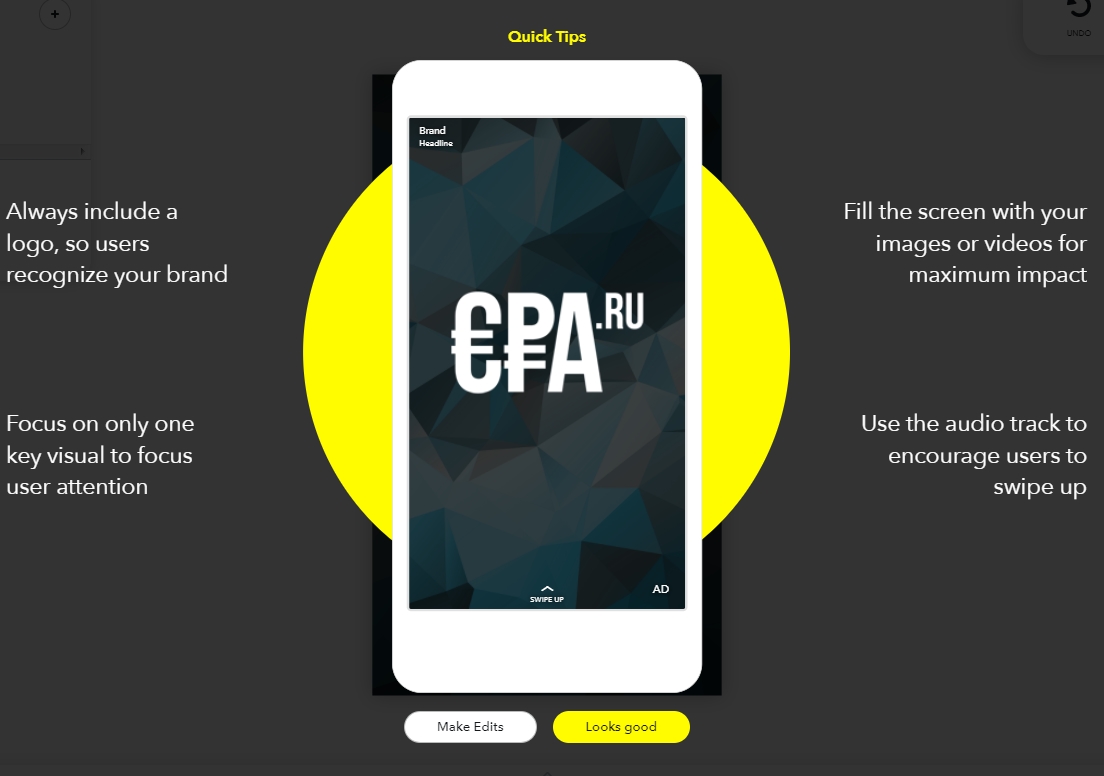
Once your creative is ready, you’ll get a preview and confirm that you want to submit it to the Snapchat Ads Manager.
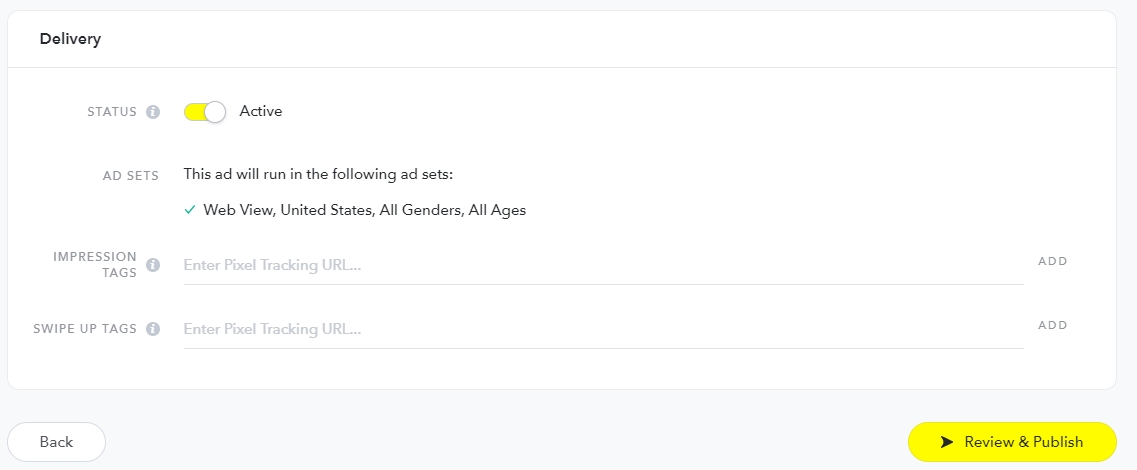
You can also set up the Snap Pixel and track conversions — at this point it really does feel like Facebook Ads all over again!
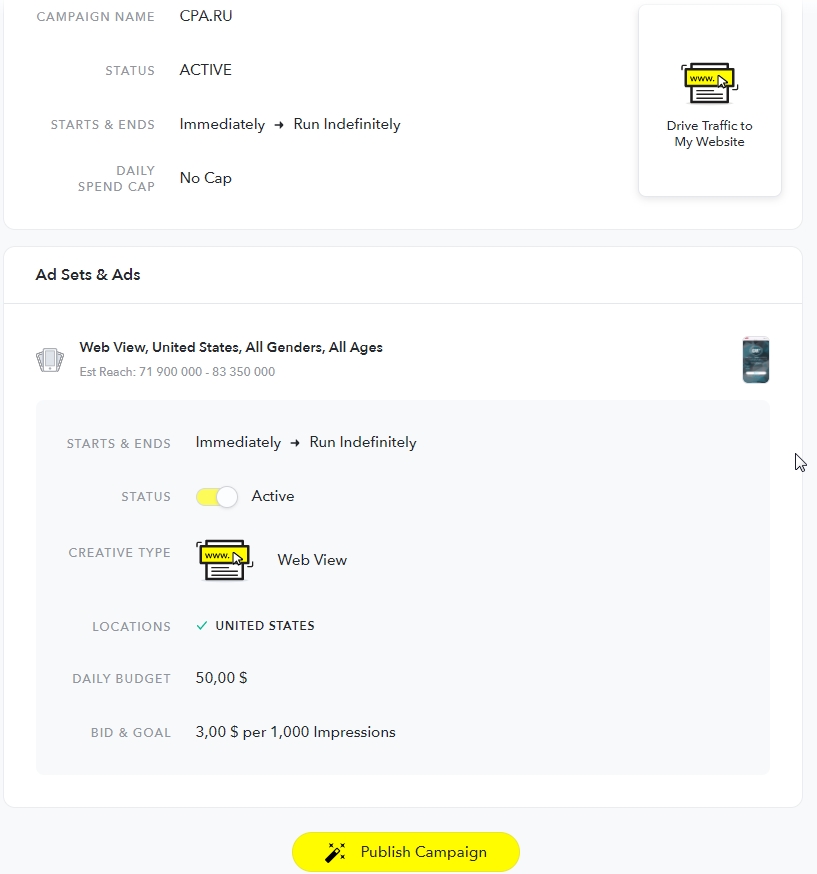
And that’s it — review the summary of your campaign settings and hit Publish Campaign to go live.






Discussion
0